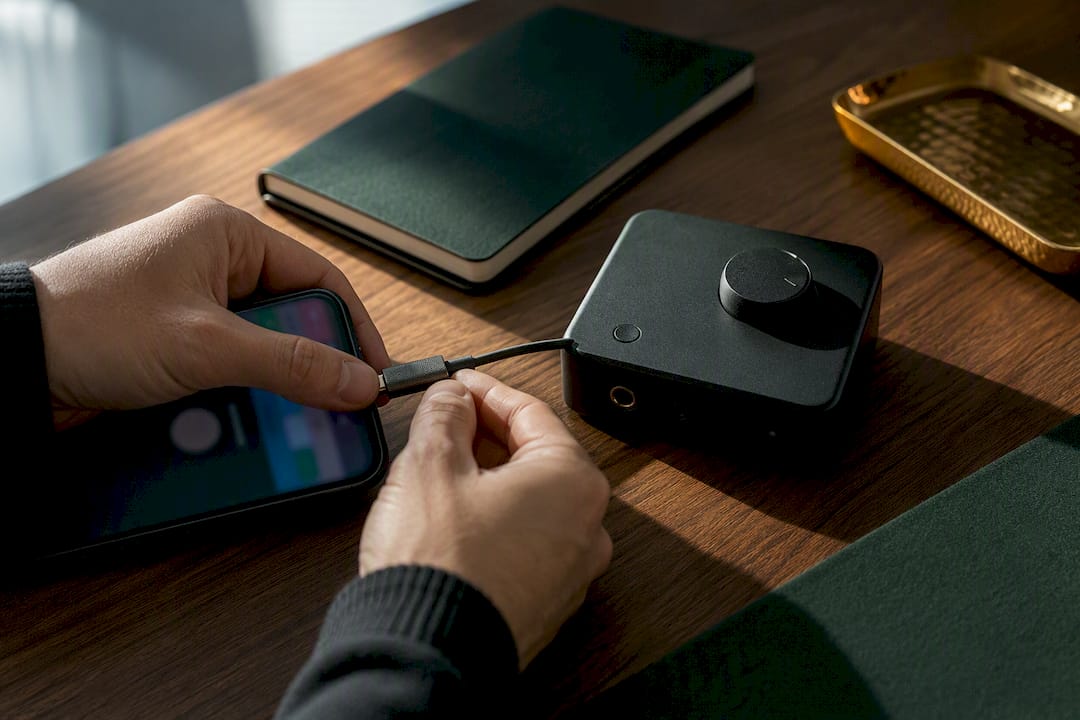
Two routes get you from voicemail to text fastest: native device or carrier transcription for an instant, on-screen preview, or exporting the audio and running it through an AI upload tool for an accurate, exportable transcript. Use the first for quick triage, the second when you need a clean record, and an integrated platform like Wattle when transcripts need to feed a business inbox or CRM automatically. TechRadar and Google’s own support documentation both point the same way: convenience first, accuracy and export second.
TL;DR:
- Native transcription provides quick on-screen text but often skips less common languages and cannot be exported or archived easily.
- Upload tools handle accents and background noise better, produce exportable files in multiple formats, but require exporting the audio first, which adds extra steps.
- Business platforms automatically transcribe and route voicemails into shared inboxes or CRMs, making them suitable for high volume and team use with options for retention and export controls.
- Exporting the original voicemail audio as a common file format like MP3 or WAV is the most flexible step for later transcription or archiving.
- Transcripts stored on servers or cloud services may involve privacy considerations, especially regarding human review, data region, and retention policies.
WattleRoute Voicemails Into One InboxWattle transcribes calls, captures details, and brings conversations into one workspace for teams managing customer enquiries.Explore Wattle
Table of Contents
- Which voicemail transcription method should you use?
- How do you export a voicemail to a file?
- How do you upload a voicemail and get an accurate transcript?
- What can’t native voicemail transcription do?
- Where does your voicemail data actually go?
- How do businesses automate voicemail transcription?
- What actually matters when choosing a workflow
- Get every voicemail transcribed and routed automatically
- Where these voicemail transcription facts come from
- Sources
- FAQ
Which voicemail transcription method should you use?
Three method classes cover almost every situation, and they trade off speed against accuracy and portability.
Native transcription (Apple’s Live Voicemail, the Android Phone app) shows text on screen in real time or moments after a message lands. It costs nothing extra and needs no setup beyond a toggle, but it’s tied to your device, often skips less common languages, and rarely gives you a file you can forward or archive.
One-shot upload tools take an exported audio file and return an editable, exportable transcript, usually within a few minutes. They handle accents and background noise better than most native engines and let you download TXT, DOCX, or subtitle files. The catch: you have to export the voicemail first, which adds a step.
Business platforms transcribe every call automatically and route the text into a shared inbox, CRM, or calendar. Built for teams, not one-off jobs.
Before picking a path, ask yourself:
- Do I need an exportable, shareable record, or just a quick read?
- How many voicemails am I dealing with, one a week or dozens a day?
- Are any of these messages in a language my phone doesn’t transcribe well?
How do you export a voicemail to a file?
Getting the audio off your phone is the step most people skip, and it’s the one VexaScribe flags as the move that gives you the most flexibility later, since it lets you archive the original file and still choose any transcription tool afterwards.
On iPhone:
- Open Phone, then Voicemail.
- Tap the message you want.
- Tap Share.
- Save to Files, send via Mail, or AirDrop it to another device.
On Android:
- Open your Phone or carrier voicemail app.
- Open the message and look for the options menu (usually three dots).
- Choose Save or Share, exporting as .m4a, .amr, or .mp3.
- No export option? Play the message aloud and record it on a second device as a fallback.
Web voicemail (Google Voice, business VoIP systems): download the MP3 directly from the web dashboard, or save the audio attachment from the notification email.
Pro Tip: Stick to .m4a, .mp3, or .wav where you can. These are the formats most upload tools accept without conversion, and they preserve enough audio quality for accurate transcription.
How do you upload a voicemail and get an accurate transcript?
Once you’ve got the file, the workflow is short.
Start by checking the file plays cleanly and picking a language setting, most tools auto-detect this, but manual selection helps with strong accents or mixed-language messages.
Upload the file and wait. Processing typically takes a few minutes for a short voicemail, and most tools show a progress indicator so you’re not guessing whether it’s stuck.
Review the draft transcript before you trust it. AI transcription still stumbles on:
- Phone numbers and account numbers
- Proper nouns and unusual names
- Timestamps mentioned mid-message
- Fast or overlapping speech
Fix those manually in the tool’s editor, most offer inline correction rather than a fresh re-upload.
Export in the format that matches your use case: TXT or DOCX for records and email forwarding, SRT or VTT if you’re captioning a clip, and JSON if you’re feeding the text into an automation or CRM. Some services, including UniScribe, offer a free monthly quota that comfortably covers occasional, low-volume use.

What can’t native voicemail transcription do?
Apple’s Live Voicemail generates text live as someone leaves a message, and Android’s Phone app does something similar on supported carriers and devices. Both are genuinely useful for a fast glance at what someone wants, but Apple’s own support documentation is upfront that the feature is limited in language coverage and doesn’t hand you an easy export path.
Accuracy drops in predictable situations:
- Background noise (traffic, wind, a busy office)
- Strong or unfamiliar accents
- Low bit-rate call quality, common on weak mobile signal
- Two people talking over each other
- Numbers and names, which general-purpose speech models often mishear
Dedicated transcription tools generally outperform native engines on these exact failure points, because they’re trained on broader, noisier audio datasets. If a voicemail matters, don’t lean on the on-screen preview. Export it and run it through a proper tool, a point TechRadar’s review of Live Voicemail makes plainly: convenient, but not built for accuracy-critical use.
Where does your voicemail data actually go?
Transcripts don’t just live on your phone. Depending on the method, they can sit on your device, on your carrier’s servers, or on a third party’s cloud infrastructure, each with different retention rules.
Before you settle on a workflow, check the fine print:
- Does the service ask you to opt in to human review of your recordings?
- Is there a “donation” or “help improve this feature” toggle buried in settings?
- Which region are transcripts stored in, and does that matter for your industry?
- Can you export and then delete the transcript from the service’s servers?
Google’s Phone app help documentation is explicit here: it describes a voicemail transcription donation setting where donated messages may be reviewed by a person, and it warns that turning transcription off can wipe local copies you hadn’t backed up.
Pro Tip: Disable any donation or “help us improve” toggle if you handle sensitive calls, then export anything important before it ages out of your device’s cache.
How do businesses automate voicemail transcription?
Individual export-and-upload works fine for occasional messages. Teams fielding dozens of calls a day need something that runs without anyone touching it.
The common pattern: forward or port your business number into a platform that ingests every voicemail, transcribes it automatically, and delivers the text into a shared inbox or CRM record tied to that caller. Aircall’s documentation puts typical turnaround for this kind of automated transcription at around two to three minutes per message, with known limits on supported languages.
Before committing to a platform, confirm it offers:
- Opt-in recording and transcription, not automatic capture with no consent step
- Exportable records you can pull out if you switch providers
- A searchable archive across weeks or months of calls
- Calendar and CRM integration, so a transcript can trigger a booking or a follow-up
- Clear retention controls and encrypted credential storage
Webex Calling’s own help pages note that administrators can enable or disable transcription per location, which is worth checking for any platform you’re evaluating, since not every team wants transcription on by default.
What actually matters when choosing a workflow
Match the tool to your volume and your audit needs, not the other way around. A tradie fielding three calls a day is fine with the native preview. A clinic or agency handling fifty needs something integrated, because manually exporting and uploading each one doesn’t scale past a handful of messages a week.
The rule I’d push hardest: export anything important the moment you hear it, don’t trust the local cache to hold it. Device storage gets cleared, apps get reinstalled, and “I’ll deal with it later” is how voicemails vanish. Platforms built around opt-in recording, exportable archives, and integrations, the kind of feature set Wattle offers for business calls, exist precisely because manual export doesn’t hold up once volume grows.
— Christopher
Get every voicemail transcribed and routed automatically
The methods above work well for one voicemail at a time. They fall apart once your business is fielding calls all day and nobody has time to export, upload, and file each one manually.
Wattle answers business calls directly, generates an AI summary after each one, and stores recordings and transcripts with configurable opt-in controls, so nothing gets transcribed without your say. Every call, transcript, and note lands in one unified inbox instead of scattered across a phone’s local voicemail app. Because Wattle connects to your calendar and existing business systems, a transcript doesn’t just sit there. It can trigger a booking, update a CRM record, or flag a call for staff follow-up automatically. If you’re tired of chasing down voicemails manually, see what an AI voice agent does with the calls you’re currently missing.
Where these voicemail transcription facts come from
The device-level details in this guide come straight from the source: Apple’s support documentation on Live Voicemail, Google’s Phone app help pages, and TechRadar’s independent review of iOS 17’s Live Voicemail feature. Format and export specifics draw on VexaScribe’s voicemail to text documentation, while business-side turnaround and admin control details come from Aircall’s support pages and Webex’s Calling help centre.
Sources
- Live Voicemail and voicemail transcription (Apple Support)
- How to check your voicemail (Google Phone help)
- What is Live Voicemail in iOS 17? (TechRadar)
- Voicemail to text (VexaScribe)
FAQ
How do I get a voicemail transcribed?
Use your phone’s built-in transcription (Live Voicemail on iPhone, the Phone app on Android) for an instant preview, or export the voicemail as an audio file and upload it to a dedicated transcription tool for a more accurate, exportable result.
Can I turn off voicemail transcription on my iPhone or Android?
Yes. Both platforms let you disable transcription in the Phone app’s voicemail settings, though Google’s own help documentation warns that switching it off can delete transcripts already stored locally.
Why are my voicemails being transcribed automatically?
Your carrier or device has transcription enabled by default, or you’ve opted into a feature like Live Voicemail or a carrier-based service that transcribes messages as they arrive.
Why doesn’t my iPhone show a voicemail transcription?
Live Voicemail and standard voicemail transcription depend on carrier support, device compatibility, and language availability. Coverage varies by region, so a message may simply fall outside what your carrier or device currently supports.
What’s the difference between native transcription and a dedicated transcription tool?
Native transcription is faster and built into your phone but has weaker accuracy and limited export options. A dedicated tool takes longer (a few minutes) but delivers an editable, exportable transcript with better handling of accents and background noise.