CRM call logging is the automatic capture of call metadata (duration, direction, outcome, recording, transcript) into a contact’s activity timeline, and the reliable approach is server-side integration wherever it’s supported, layered with AI-generated summaries. Roughly 90% of businesses now use CRM software for exactly this kind of tracking, and Wattle builds this logging directly into its unified inbox so nothing falls between the phone system and the pipeline.
TL;DR:
- Automatic server-side call logging is more reliable than client-side methods because it captures all calls regardless of user session status, reducing missed records.
- Proper configuration of connectors, including standardized phone number formatting and admin-level setup, prevents common issues like unmatched calls or incomplete logs.
- Storing concise AI summaries directly in the CRM while linking to full transcripts and recordings externally improves call insight accessibility without cluttering the contact timeline.
- Clear permissions, retention policies, and routine audits ensure data accuracy, compliance, and prevent duplicate or lost call records.
- Fully integrated platforms like Wattle automate call logging, AI summaries, and unified inbox management, minimizing manual effort and closing the gap between calls and CRM data.
Table of Contents
- What is CRM call logging and why does it matter for sales teams?
- Automatic vs manual logging: which architecture actually holds up?
- What call fields get recorded, and how do calls match to the right contact?
- How do you configure connectors so call logs stay complete?
- How should you handle AI call summaries, transcripts and recordings?
- What permission and retention rules keep the call log accurate?
- Why reliable call logging changes how a team actually works
- Let Wattle handle the call logging so your team doesn’t have to
- Where to go for connector and API documentation
- Sources
What is CRM call logging and why does it matter for sales teams?
CRM call logging records every inbound and outbound call, direction, duration, outcome, and the rep who handled it, straight into the contact’s activity timeline. No one types it in after the fact. That single change fixes a problem that’s plagued sales floors for decades: the gap between what actually happened on a call and what ends up written down.
The payoff shows up in a handful of places. Reps save time after every call by not taking manual notes, which adds up significantly over many calls in a day. Managers get a real record to coach against instead of a rep’s memory of how the conversation went. Follow-up gets faster because the next person to touch that contact can see the whole history in seconds, not after digging through email threads.
- Time saved on manual data entry, freed up for actual selling
- Cleaner pipeline data because nothing depends on a rep remembering to log it
- Faster handoffs between sales, support, and account management
- Better coaching and QA, since managers can review outcomes against real call detail
Manual logging still earns its place in a few spots. Field reps working from a personal mobile with no softphone connection, or anyone taking an ad hoc call that never touched company telephony, will still need to jot a quick note. The goal isn’t to eliminate manual entry entirely. It’s to make automatic logging the default and manual entry the exception.
Automatic vs manual logging: which architecture actually holds up?
The honest answer is that automatic logging wins on reliability, but not all automatic logging is built the same way, and the architecture underneath it determines whether your data is trustworthy or full of holes.
Client-side logging runs through a browser extension or softphone app sitting on an individual’s machine. It only works while that person is logged in, the extension is active, and the browser window hasn’t been closed. Convenient to set up, fragile in practice, because it depends entirely on the user’s active session. Server-side logging works at the organisation level instead, subscribing to call events centrally so calls get captured whether or not any individual has an app open. It’s more work to configure up front and it’s the far steadier option for a whole team.
- Audit who’s on client-side today. Pull a report of missed logs and check if they cluster around specific users or specific weeks, that pattern usually means an extension logged out.
- Migrate to server-side wherever your phone system supports it. This removes the single point of failure entirely.
- Decide between incremental and all-at-once logging. Most connectors create the call record immediately, then update it as the recording and transcript become available. Some organisations lock activity records against edits, which breaks that update flow, in that case switch to all-at-once mode so the whole record lands complete or not at all.
Pro Tip: If your CRM permission policy prevents edits to closed activities, check the connector settings for an “all-at-once” or “final record only” mode before you assume the integration is broken. It’s often a policy conflict, not a bug.
What call fields get recorded, and how do calls match to the right contact?
A well-built call log captures the same core fields regardless of which CRM or telephony platform sits underneath. Most connectors map a call to a single CRM activity using a standard set of properties:
- Direction (inbound or outbound)
- Start time and end time
- Total duration
- Outcome or disposition (answered, missed, voicemail)
- Recording link
- Transcript
- AI-generated summary
- Owner or agent who handled the call
Matching the call to the right contact comes down to phone number formatting. Connectors compare the number dialled or received against what’s stored in the CRM, so a mismatch between formats (missing country code, inconsistent spacing) is the single most common reason a call ends up unlinked. When one number matches several contacts or companies, most systems apply a most-recent-activity or exact-match rule, and it’s worth knowing which rule your CRM uses before you assume a mismatch is a bug.
Unmatched calls need somewhere to land rather than vanishing. Setting up a fallback account for unmatched calls keeps that data recoverable so someone can manually reassign it later instead of losing it outright. On timing, expect the base record to appear fast and the recording, transcript, and summary to attach a little later as processing finishes.
How do you configure connectors so call logs stay complete?
Getting the connector right the first time saves weeks of chasing missing records later. Run through this before you flip logging on for the whole team:
- Install with proper admin credentials and API scopes. Server-side logging typically needs an admin account to subscribe to call events organisation-wide, so use a dedicated integration user rather than a personal login that might get deactivated.
- Standardise phone number formatting to E.164 (country code plus number, no spaces or brackets) across your CRM records before matching goes live. This single step prevents most unmatched-call issues before they start.
- Test the connector on a small group first. Route a handful of test calls through and confirm the record, recording, and transcript all land where expected before rolling it out company-wide.
- Set up user-owner mapping, not admin-owned records. Because server-side logging authenticates through an admin account, logs can default to that admin as the owner unless you configure mapping rules that assign each call to the agent who actually took it. Skip this step and every report on rep activity will be wrong.
- Map custom fields and mark required ones. If your CRM needs a disposition code or campaign tag on every call, build that into the connector’s field mapping rather than relying on reps to fill it in later.
- Decide your retroactive logging policy. Some connectors can backfill historical calls once installed. Decide upfront whether that’s wanted, unfiltered retroactive logging can flood the CRM with old, low-value records.
Pro Tip: Check duration figures against your phone system’s own call detail records before trusting them for reporting. If calls route through a main company number, the logged duration can include queue or redirect time, not just actual talk time, which skews average handle time metrics if nobody accounts for it.
How should you handle AI call summaries, transcripts and recordings?
AI summaries solve a real problem: nobody wants to read a fifteen-minute transcript to find out what happened on a call, and automated summaries deliver the highlights in a few lines instead. The trick is deciding what actually belongs inside the CRM record versus what should live elsewhere with a link back to it.
Three delivery patterns cover most setups:
- Inline CRM note: a short AI summary sits directly on the activity record, visible without opening anything else
- Deep link to workspace: the CRM shows a summary line with a link through to the full transcript and recording in the call platform
- Team channel notification: summaries push straight to Slack or email so reps act on urgent outcomes without logging into the CRM at all
That third pattern reflects where the industry’s heading. The idea behind “frictionless continuity” is that call insight should reach people where they’re already working, not force a CRM login just to see what happened on a call.
The best-practice split is to keep a concise, readable summary in the CRM activity itself and store full transcripts and recordings externally with a link, rather than pasting entire transcripts into the record and cluttering the timeline. On privacy, recording and transcription should always run on explicit opt-in, with retention windows set deliberately rather than left on indefinite storage by default.
What permission and retention rules keep the call log accurate?
Getting the technical setup right only holds if the operational rules around it are just as tight. A few things to lock down early:
- Set clear edit permissions. Decide who can create, edit, or only view call logs. Give too many people edit rights and you’ll get duplicate entries; lock it down too hard and incremental logging (record now, transcript later) can’t update the record at all.
- Write a retention policy for recordings and transcripts. Match it to your compliance obligations and don’t just default to “keep everything forever,” which becomes a storage and privacy liability over time.
- Audit for missed or duplicate logs monthly. A quick spot-check against your phone system’s own call records catches drift before it becomes a trust problem with the sales team.
- Run a short troubleshooting checklist when something goes wrong: check the connector’s health status first, confirm client-side extensions are actually logged in for any user still on that method, review the unmatched-calls fallback account for stranded records, and verify server-side logging settings haven’t been changed by a recent CRM update.
Most call logging failures trace back to one of those four things, not some deeper technical fault.
Why reliable call logging changes how a team actually works
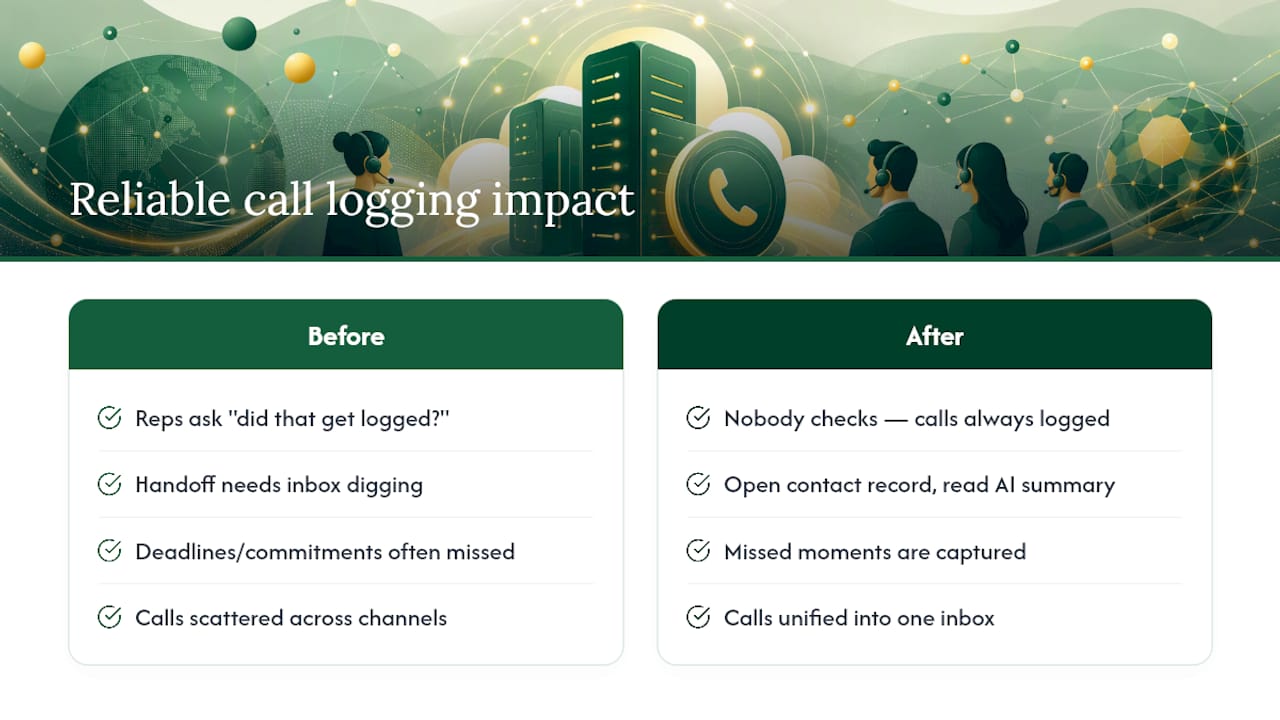
The clearest sign a call logging setup is working is that nobody thinks about it anymore. Reps stop asking “did that get logged?” because it always does. A handoff between sales and support used to mean digging through someone’s inbox for context; now the next person just opens the contact record and reads the AI summary before they’ve even picked up the phone.
That shift matters most in the moments that used to get missed: the customer who mentioned a deadline three calls ago, the commitment made verbally that never made it into a follow-up email. Wattle’s approach, capturing calls across phone, WhatsApp, and web into one inbox with a summary attached, closes exactly that gap. Less time spent reconstructing what happened, more time spent acting on it.
— Christopher
Let Wattle handle the call logging so your team doesn’t have to
Every setup step covered above, server-side capture, owner mapping, AI summaries, unmatched-call fallbacks, is the exact groundwork Wattle already handles for you rather than something you configure from scratch. Wattle’s voice agents pick up calls, log them automatically to a unified inbox, and generate an AI summary the moment the call ends, with recordings kept on explicit opt-in and short-lived secure links rather than sitting exposed in a shared drive.
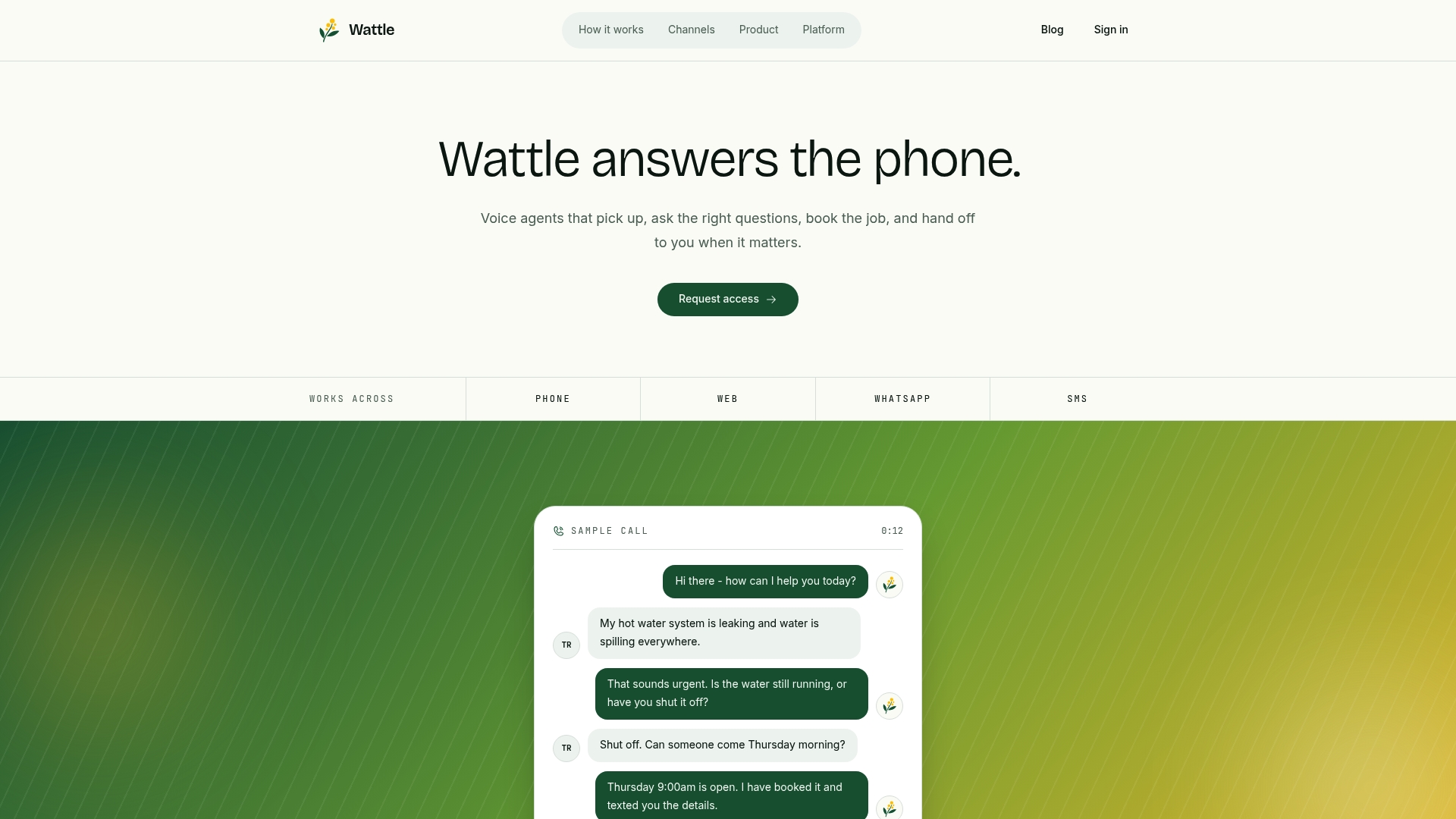
Because it runs across phone, WhatsApp, and web from the same workspace, there’s no separate connector to babysit for each channel and no admin-owned record problem to untangle later. Calls tie straight to the right contact, feed into your calendar and accounting integrations, and hand off to a human the moment a conversation needs one, with effortless management powered by RingPort AI Receptionist for small business. If your current setup still leaves gaps between what happened on a call and what’s written down, book a demo through Wattle and see what a fully logged, fully summarised inbox looks like from day one.
Where to go for connector and API documentation
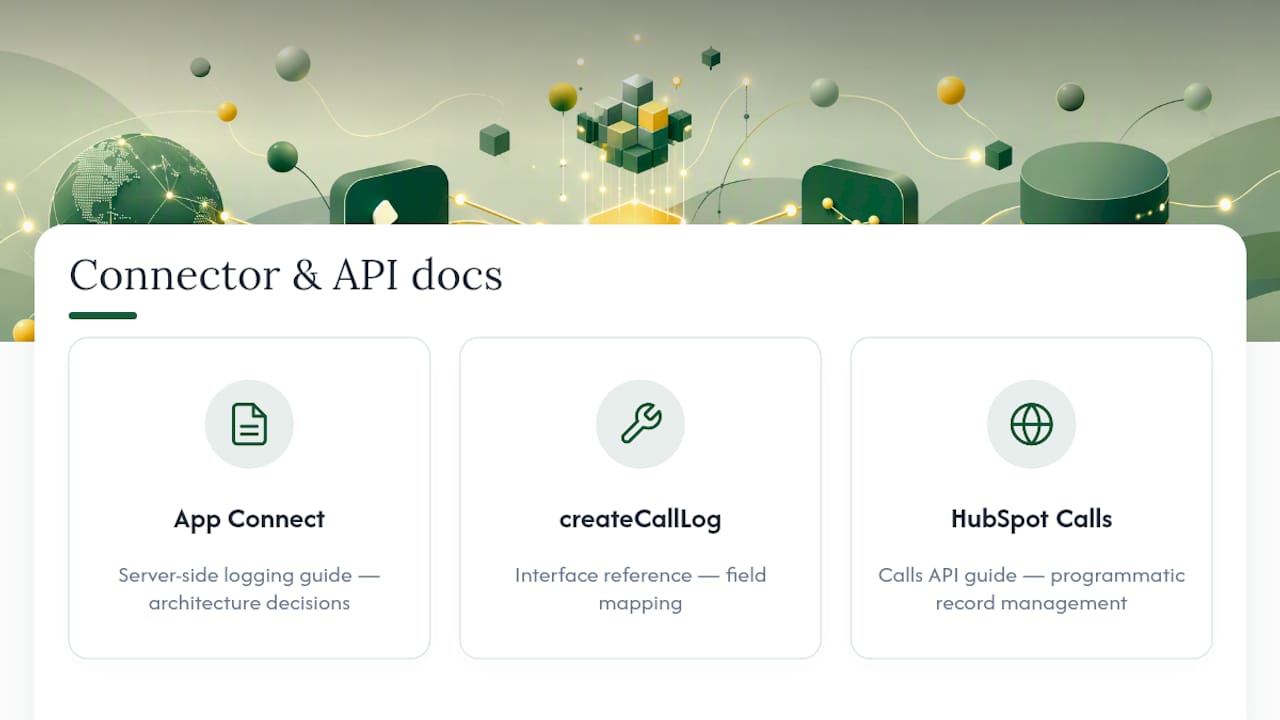
For hands-on configuration, start with App Connect’s server-side logging guide for architecture decisions, the createCallLog interface reference for field mapping, and HubSpot’s Calls API guide for programmatic record management.