
Use an API-driven two-way sync when edits need to appear live in both systems, and stick to a one-way “busy only” sync when the only thing that matters is showing you’re unavailable. The protocol decides the outcome here: Google’s push API and Exchange ActiveSync update in near real time, while ICS (iCal) feeds and some CalDAV setups can lag by minutes or hours. Businesses running a booking desk across calls, chat, and calendars often outgrow DIY syncing altogether and move to an omnichannel platform like Wattle that writes bookings straight into the calendar.
TL;DR:
- Using API-driven push sync provides near real-time updates for Google and Outlook calendars, while ICS and CalDAV feeds can lag by minutes or hours.
- Connecting the wrong calendar or selecting an incorrect sync direction remains the most common setup error, especially confusing default personal and shared calendars.
- For businesses, a centralised front desk that consolidates multiple channels into one calendar reduces missed bookings and prevents double bookings across communication platforms.
- Sync failures are often caused by incorrect protocols, blocked permissions, expired tokens, or connecting read-only feeds when write access is needed.
- Regular testing of event creation, editing, and deletion helps maintain sync reliability, particularly with recurring events and historical data backfills.
Wattleheywattle.comKeep Every Booking in SyncWattle connects customer conversations with Google Calendar and Cal.com, helping teams manage appointments across calls, chats, WhatsApp, and SMS.See Wattle in action
Table of Contents
- How do I set up appointment calendar sync?
- One-way vs two-way: which sync mode actually fits you?
- Why isn’t my calendar syncing? Common fixes
- How do you test and maintain a calendar sync?
- When does a business need more than a basic calendar sync?
- Safety first, then automation
- Turn every booking channel into one calendar entry
- Sources
- FAQ
How do I set up appointment calendar sync?
Setup varies by provider, but the mistake is almost always the same: connecting the wrong calendar or picking the wrong sync direction without realising it. Here’s how to get it right the first time.
-
Google Calendar. Authorise your booking app or sync tool to access your Google account, then select the exact calendar you want inside that account, not just the default one. Most people have several calendars (personal, work, a shared team calendar) and connecting the wrong one is the single most common setup error. Choose one-way or two-way, then create a small test event before trusting it with real appointments.
-
Outlook / Microsoft 365. Never connect calendars over IMAP. Add the account as Exchange or Office 365 instead, accept any shared calendar invitations sent to you, and turn on shared calendar improvements if your organisation offers them. Microsoft’s own documentation notes that shared calendars can sync almost instantly within the same tenant, but cross-tenant shares or ICS-based subscriptions update only periodically, sometimes taking hours. Double-check permissions too: viewing free/busy is different from full edit access, and booking tools usually need the latter.
-
Apple iCloud. Generate an app-specific password rather than reusing your Apple ID password, pick the correct destination calendar, and lean towards one-way pushes if privacy matters. iCloud calendars tend to poll rather than push, so expect slightly longer delays than Google or Outlook.
-
Booking pages and scheduling tools. Always point the connection at your dedicated booking calendar, never a personal inbox calendar buried under fifteen other appointments. Mixing the two is how client meetings end up double booked against your dentist appointment.
Once it’s connected, run a short checklist: create an event, edit it, delete it, then test a recurring booking. Watch your inbox too. Adding attendees to a synced event often triggers automatic email notifications you didn’t intend to send, which is an easy way to confuse clients who weren’t expecting a calendar invite.
One-way vs two-way: which sync mode actually fits you?
Four terms get thrown around loosely, and mixing them up is where most sync headaches start.
- One-way sync copies events from Source A into Calendar B, but changes in B never travel back.
- Two-way sync (sometimes called mirror sync) keeps both calendars updated regardless of where the edit happens.
- Push sync uses a webhook or API call to update the destination the moment something changes.
- Pull/poll sync checks on a schedule, which introduces a delay by design.
A freelancer syncing a personal calendar into a work calendar usually only needs one-way, busy-only visibility, nothing more. A team sharing one operational calendar, where five different people create and edit events, genuinely needs two-way sync built on an API rather than a feed. A booking business sits somewhere in between: bookings flow one way from the scheduling tool into the calendar, but staff still need to block time manually inside that same calendar.
Privacy mapping matters just as much as direction. Full detail sync copies titles, locations, notes, and attendees. Busy-only sync copies nothing but a block of unavailable time. SyncThemCalendars’ guidance treats busy-only as the sensible default for personal-to-work visibility, because it removes the risk of a client’s name or a private appointment detail leaking into a calendar other people can see.
Latency reality check: API-driven push syncs for Google and Outlook typically update in around four seconds. ICS feeds poll on a fixed schedule, often every 15 minutes to several hours, so treat them as read-only visibility tools rather than live scheduling infrastructure.
Why isn’t my calendar syncing? Common fixes
Most sync failures trace back to one of five causes, and you can usually diagnose which one in under ten minutes.
- Wrong protocol. IMAP and POP only sync email. They were never built to sync calendars, and connecting a calendar account over IMAP is the most common reason mobile sync fails. Remove the account and re-add it as Exchange or the provider’s native account type.
- Blocked permissions. Check that Calendars access is switched on for the app, both in your phone’s settings and inside the calendar app itself. On iPhone, Background App Refresh being off can quietly stall updates too.
- Wrong calendar or wrong direction. You may have connected a read-only ICS feed when you actually needed write access. ICS feeds can display events but can’t accept edits back, so if you’re expecting two-way behaviour and got a static feed, that’s your problem.
- Expired tokens. OAuth tokens and API sync tokens expire or get revoked. If a sync just stops working after weeks of running fine, this is usually why.
- Recurring events and attendee copying. Recurring series with one edited instance are notoriously the hardest case for any sync engine to handle correctly, and large backfills of years-old events can time out or partially fail.
Pro Tip: Before assuming your sync tool is broken, delete the connection entirely and re-add it from scratch rather than tweaking settings. A clean re-authentication resolves more sync issues than any setting change, because it forces a fresh token exchange instead of patching a stale one.
How do you test and maintain a calendar sync?
A sync that worked on day one can quietly break weeks later, so build testing into a routine rather than a one-off step.
- Create a single test event with a distinctive title so you can find it easily.
- Change its time and confirm the destination calendar updates the same event rather than spawning a duplicate.
- Delete it and check the deletion actually propagates.
- Edit a recurring series and then create one exception to a single instance. This is where sync engines most often break silently.
Set expectations for backfill too. Many booking platforms only copy a limited history on first connection, often the past month plus the next two years forward, and some skip certain event types like appointment slots entirely. Don’t assume every historical booking made it across.
For anything running on Google’s API, watch for an HTTP 410 error, which signals your sync token has been invalidated. The fix is a full resync during a quiet period, followed by storing the new token, and it’s worth noting the date you did it in case something looks off later.
When does a business need more than a basic calendar sync?
Simple sync patterns handle most personal cases. Businesses juggling multiple booking sources hit different problems entirely.
A typical workflow looks like this: a client books through a scheduling page, the booking system writes an event into Google or Outlook, and staff get notified. Add a phone line and a WhatsApp inbox into that mix, and DIY calendar wiring starts to strain. Every extra channel is another place a booking can get missed, duplicated, or written to the wrong calendar.
A centralised front desk avoids that by giving every channel one destination. It’s a single source of truth for who booked what, fewer missed calls because nothing is waiting in a separate inbox, and consistent confirmations regardless of whether the client called, texted, or filled in a form.
Before switching from ad hoc syncing to a centralised system, check for:
- Genuine two-way calendar writes, not just a read-only feed
- Exact-action confirmation before a booking or cancellation goes through
- A clear handoff path to a human when a request gets complicated
- Logging you can actually audit later
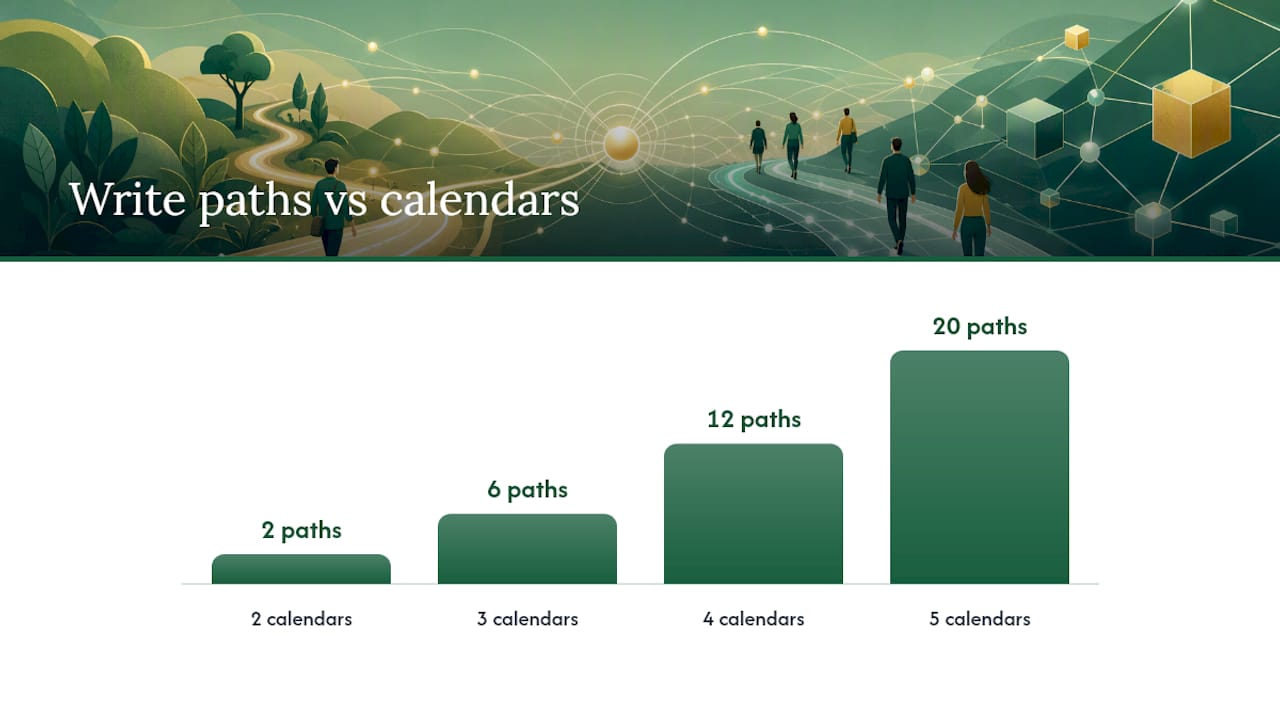
Pro Tip: If you’re bridging three or more calendars into one mirror sync, expect duplicate events unless the tool deduplicates by event ID. Bridging tools like Syncdate document this explicitly because N calendars syncing together create N×(N−1) write paths, and that math catches people out fast.
Some platforms handle this by connecting directly to popular calendar services so bookings made over the phone, on the website, or through messaging apps write straight into the calendar staff already use, with confirmation steps and handoff to a person built in rather than bolted on.
Safety first, then automation
Start with one-way, busy-only sync if you’re worried about accidental cross-writes or a private detail leaking somewhere it shouldn’t. Only move to two-way API syncs, or a fully integrated front desk, once you genuinely need live edits flowing across calendars and channels. Test the rollback path before you flip that switch, not after something’s already gone wrong.
— Christopher
Turn every booking channel into one calendar entry
Missed calls and double bookings usually come down to the same root cause: too many separate inboxes, none of them talking to your calendar in real time. Certain AI front desk solutions answer calls, website chats, WhatsApp messages, and SMS from one place, and write confirmed bookings straight into connected calendars through integrations with services like Google Calendar and Cal.com.
Instead of stitching together a scheduling page, a phone line, and a shared inbox and hoping nothing slips through, Wattle gives service businesses a single front desk that qualifies enquiries, books the appointment, and confirms it, with a human handoff ready for anything sensitive. For teams already juggling shared team calendars, a tool like Jubiliq can help plan the event side once the booking’s locked in. If you want to see how the calendar integrations work for your setup, book a demo with Wattle and check pricing details on the site.
Sources
- Calendar sharing in Microsoft 365
- How to Sync Google Calendar with Outlook & iCloud (SyncThemCalendars blog)
- SYNCDATE — Calendar Sync Tool for Google, Outlook & iCloud
FAQ
How do I sync my calendar to a booking system?
Connect your booking tool to the exact calendar you want events written into, choose one-way if you only need availability shown, and choose two-way if edits should flow both ways, then test with a single throwaway event before trusting it with real clients.
How do I get my calendar to sync automatically?
Use an account type and protocol that actually supports calendar sync, such as Exchange ActiveSync or a provider’s native API, since IMAP and POP only handle email and never calendars.
How do I put an appointment on my phone calendar?
Add or edit the event directly in your synced calendar app, or accept a calendar invite sent by email or by the booking tool, and it will appear on your phone automatically once the account is correctly connected.
Why isn’t my calendar syncing?
The usual culprits are a wrong protocol (IMAP instead of Exchange), blocked app permissions, an expired sync token, or a read-only ICS feed connected where a two-way sync was expected. Re-adding the account from scratch fixes most cases.
What’s the difference between busy-only and full-detail sync?
Busy-only sync copies just a block of unavailable time with no details, while full-detail sync copies the title, location, notes, and attendees, and most privacy-conscious setups default to busy-only for personal-to-work visibility.